How To Create Architectural Concepts Quickly
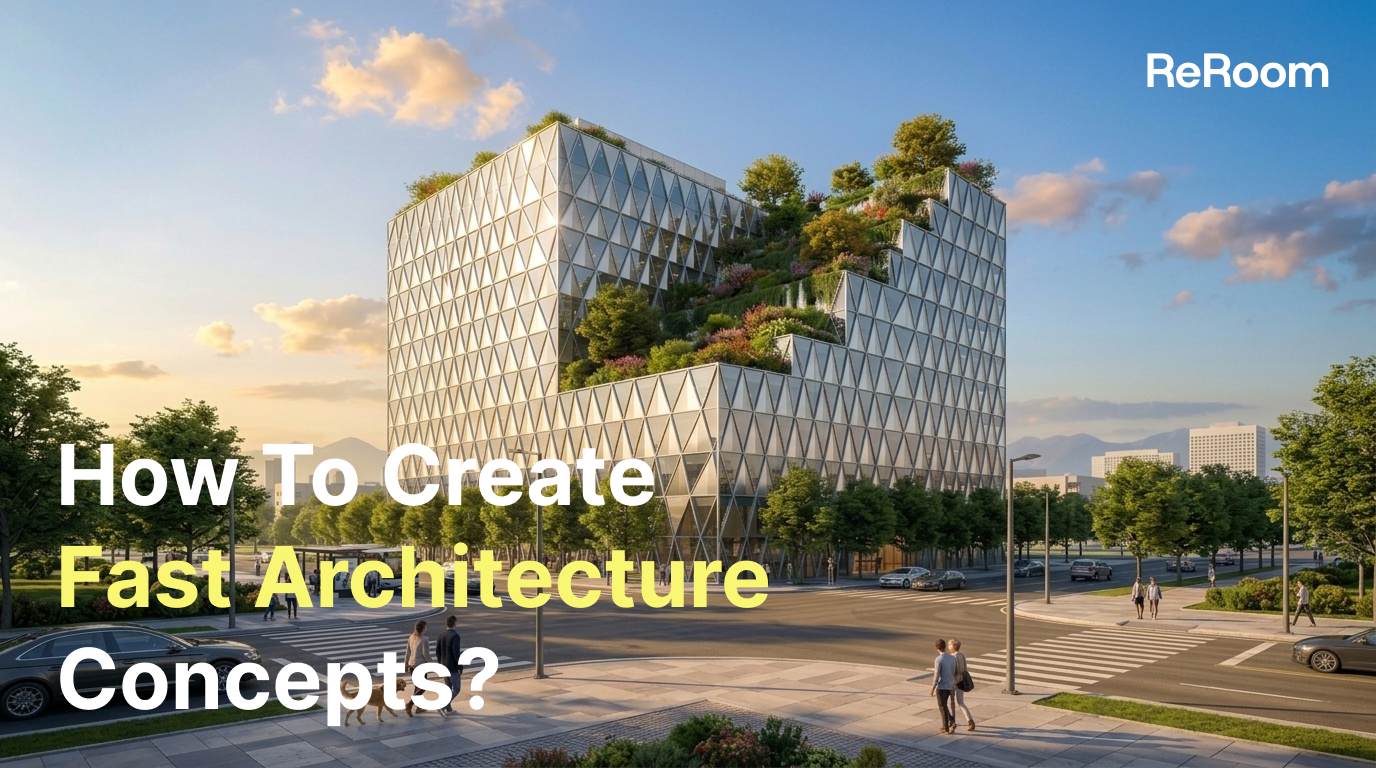
Learn how to use ReRoom to quickly generate architectural concept visuals, from exterior scenes to exploded axonometric diagrams and facade details.
Why we built this workflow
In early-stage architectural design, teams often need to create many different types of visuals at the same time. Exterior perspectives, section elevations, exploded diagrams, environmental analysis graphics, and facade detail shots usually come from separate workflows and different software tools.
We wanted to simplify this process inside ReRoom. Instead of treating every image as an isolated task, we started building a workflow that lets designers quickly explore architectural concepts through AI-generated visuals.
In this tutorial, we’ll walk through how we use ReRoom to generate a complete set of architectural concept images from a single starting idea.
Step 1 — Log in and start a new project
First, log in to ReRoom and create a new project from the home page.
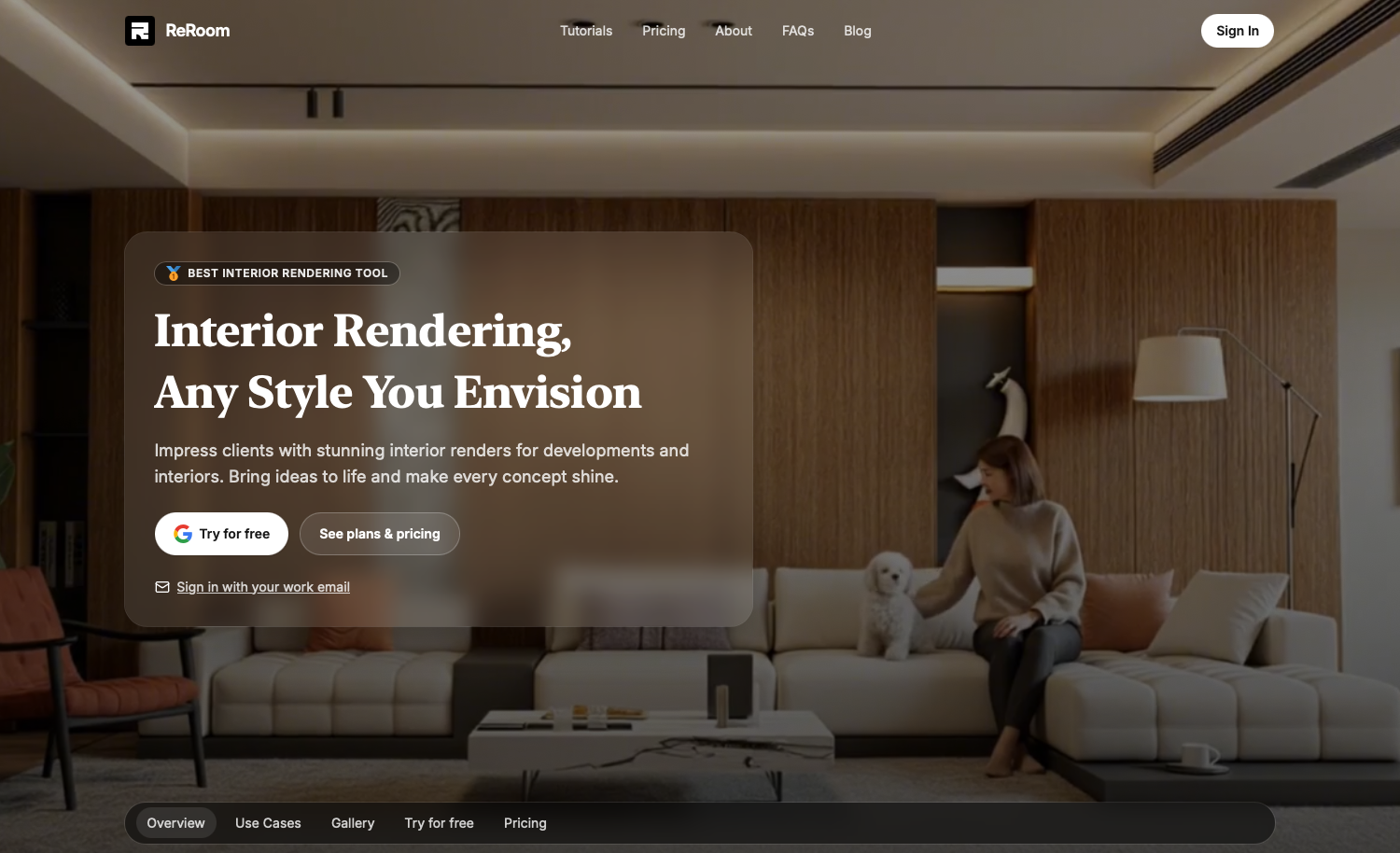 Figure 01. ReRoom home page and project setup
After entering the workspace, upload your reference image or architectural sketch. This can be a massing study, CAD export, conceptual diagram, or even a rough hand sketch.
We usually start with a simple image instead of a polished render. Early-stage concepts work better when the structure is still flexible.
Step 2 — Configure the generation settings
Once the image is uploaded, we configure the generation settings before writing prompts.
Inside ReRoom, we typically adjust:
- Model selection
- Image ratio
For architectural workflows, we usually prefer wider ratios such as 16:9 or 4:3 because they preserve more spatial context.
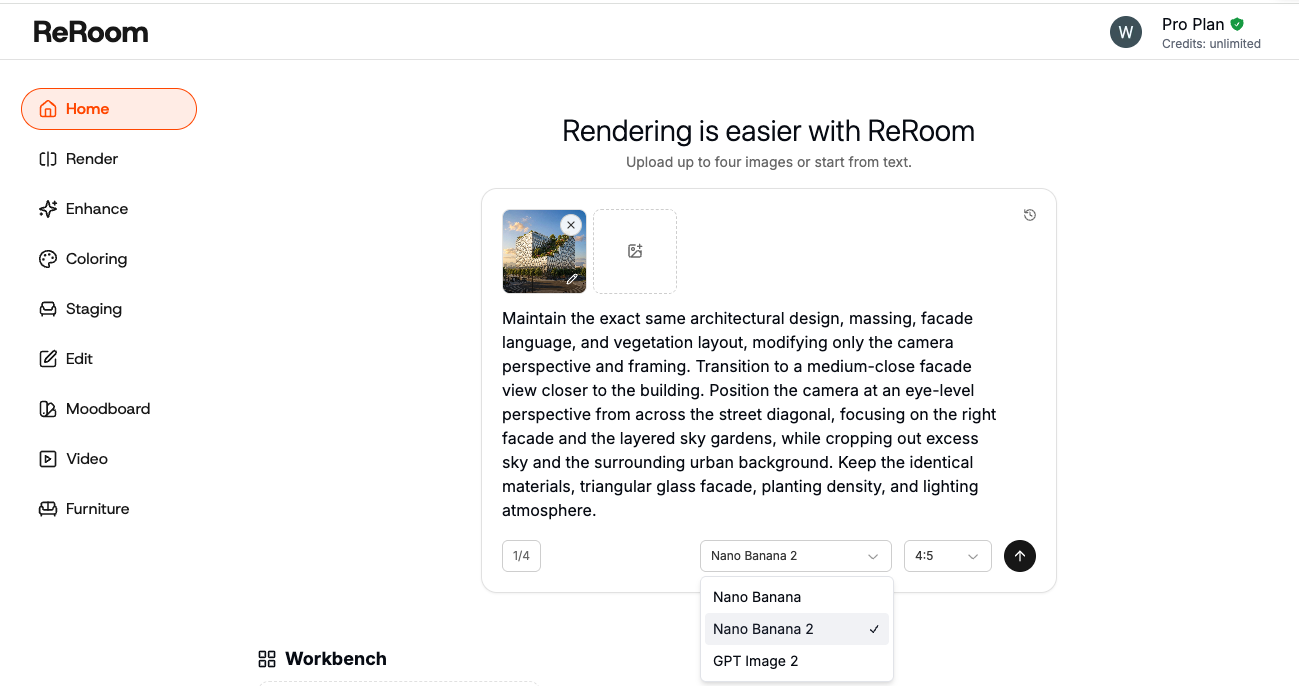 Figure 02. Generation settings inside ReRoom
Choosing the right model also changes the output significantly. Some models produce softer conceptual visuals, while others prioritize material realism and architectural detail.
Step 3 — Generate exterior architectural perspectives
The first image we usually generate is a partial exterior perspective. Instead of rendering the entire building immediately, we focus on atmosphere, scale, and material direction first.
Maintain the exact same architectural design, massing, facade language, and vegetation layout, modifying only the camera perspective and framing. Transition to a medium-close facade view closer to the building. Position the camera at an eye-level perspective from across the street diagonal, focusing on the right facade and the layered sky gardens, while cropping out excess sky and the surrounding urban background. Keep the identical materials, triangular glass facade, planting density, and lighting atmosphere.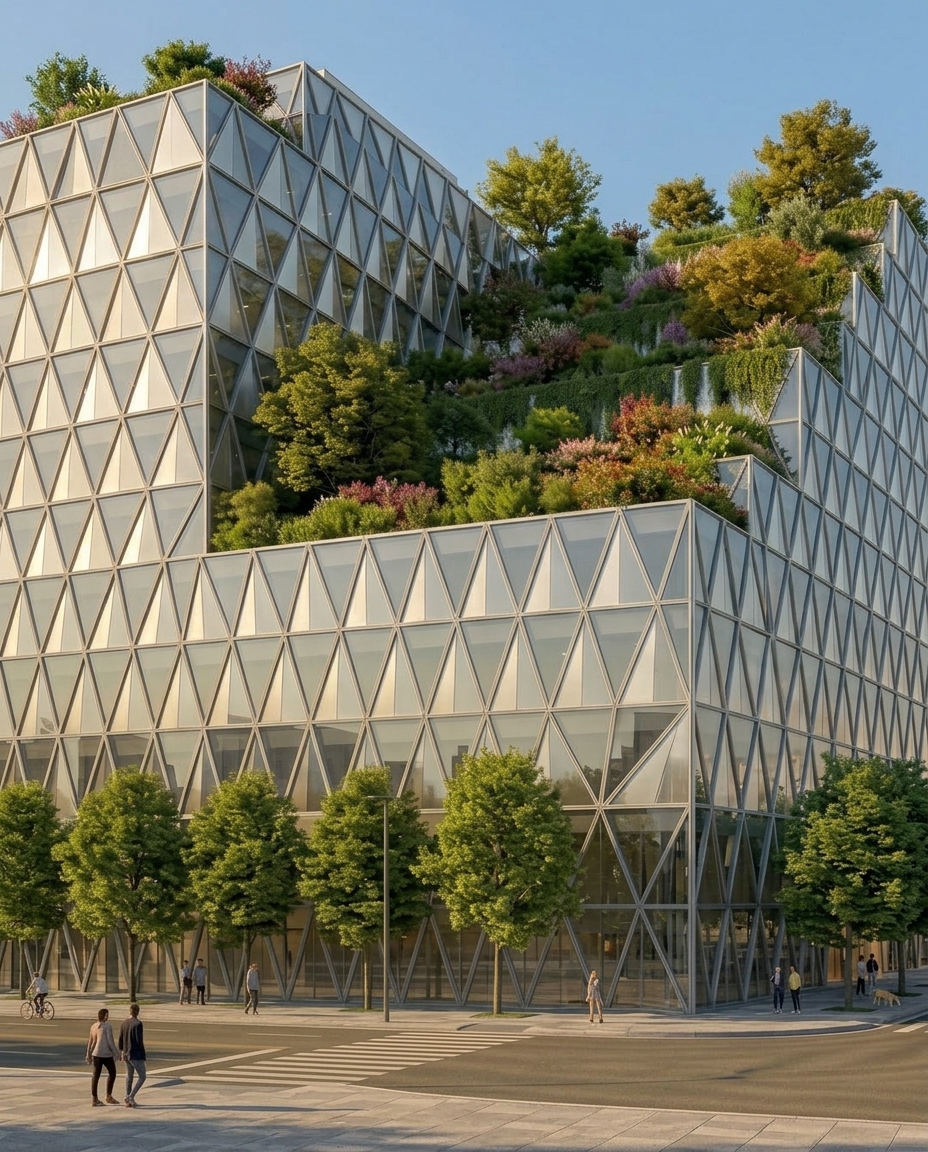
Figure 03. Exterior architectural perspective generated with ReRoom
One thing we learned is that prompts with too many style keywords often break spatial consistency. We now keep prompts shorter and prioritize architectural structure over visual effects.
Step 4 — Create section elevations and interior perspectives
After generating exterior views, we move into section elevations and interior-to-exterior perspectives.
These images help us verify whether the spatial relationships still make sense after generation.
architectural section elevation, interior spatial relationship, natural lighting, clean composition, realistic architectural rendering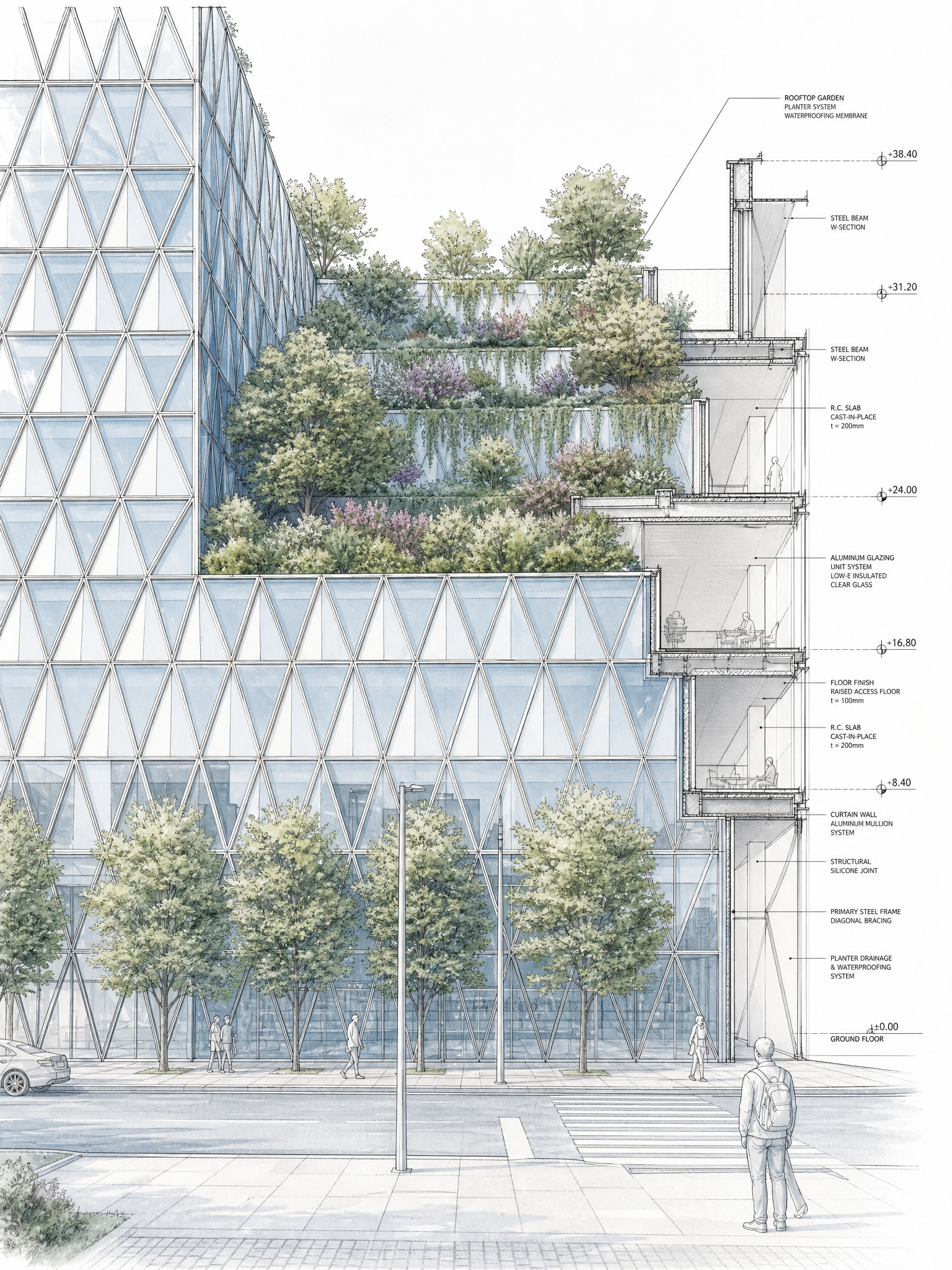 Figure 04. Architectural section elevation
For interior perspectives, we usually focus on openings, circulation, and how natural light interacts with the space.
interior view looking outward, architectural framing, warm natural light, realistic interior atmosphere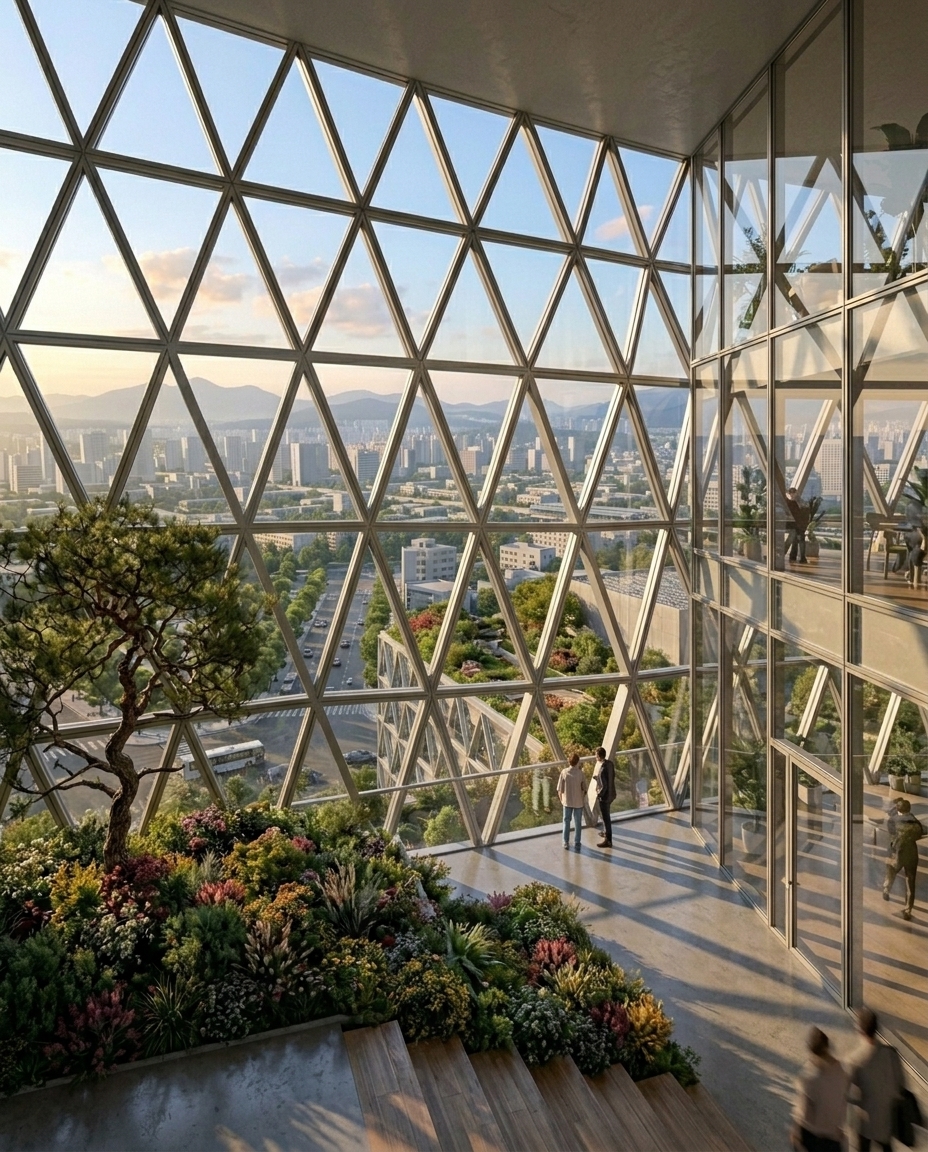 Figure 05. Interior-to-exterior perspective
At this stage, we intentionally reduce aggressive style prompts. Preserving spatial logic is usually more important than generating dramatic visuals.
Step 5 — Generate diagrams and detail studies
ReRoom can also be used to generate architectural diagrams and presentation graphics.
One workflow we use frequently is exploded axonometric analysis. Instead of manually building every layer, we use AI to help us quickly establish composition and hierarchy.
exploded axonometric architectural diagram, layered composition, clean architectural graphics, minimal presentation style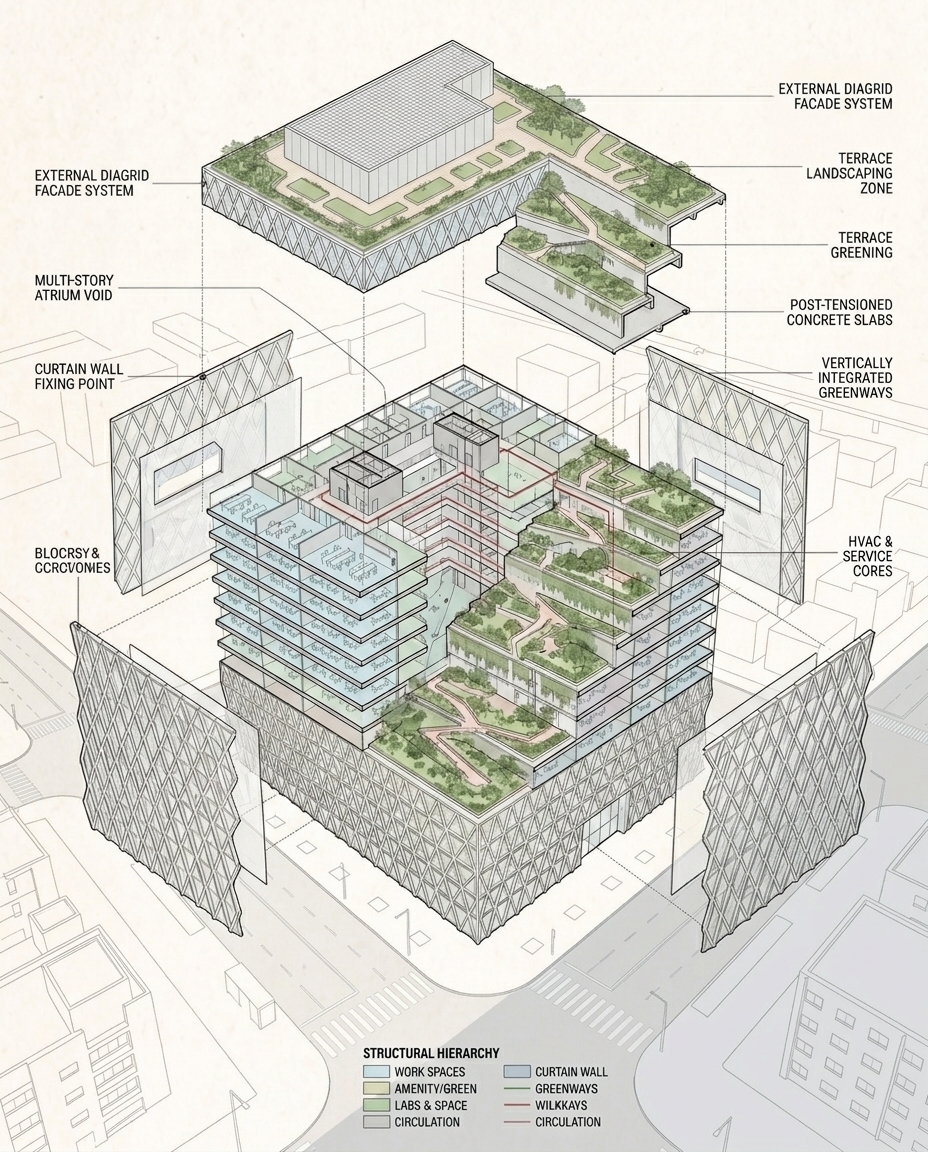 Figure 06. Exploded axonometric analysis diagram
We also experiment with watercolor illustration styles during concept presentations because they help clients focus on spatial ideas instead of material perfection.
architectural watercolor illustration, soft color palette, hand-drawn architectural rendering, conceptual presentation style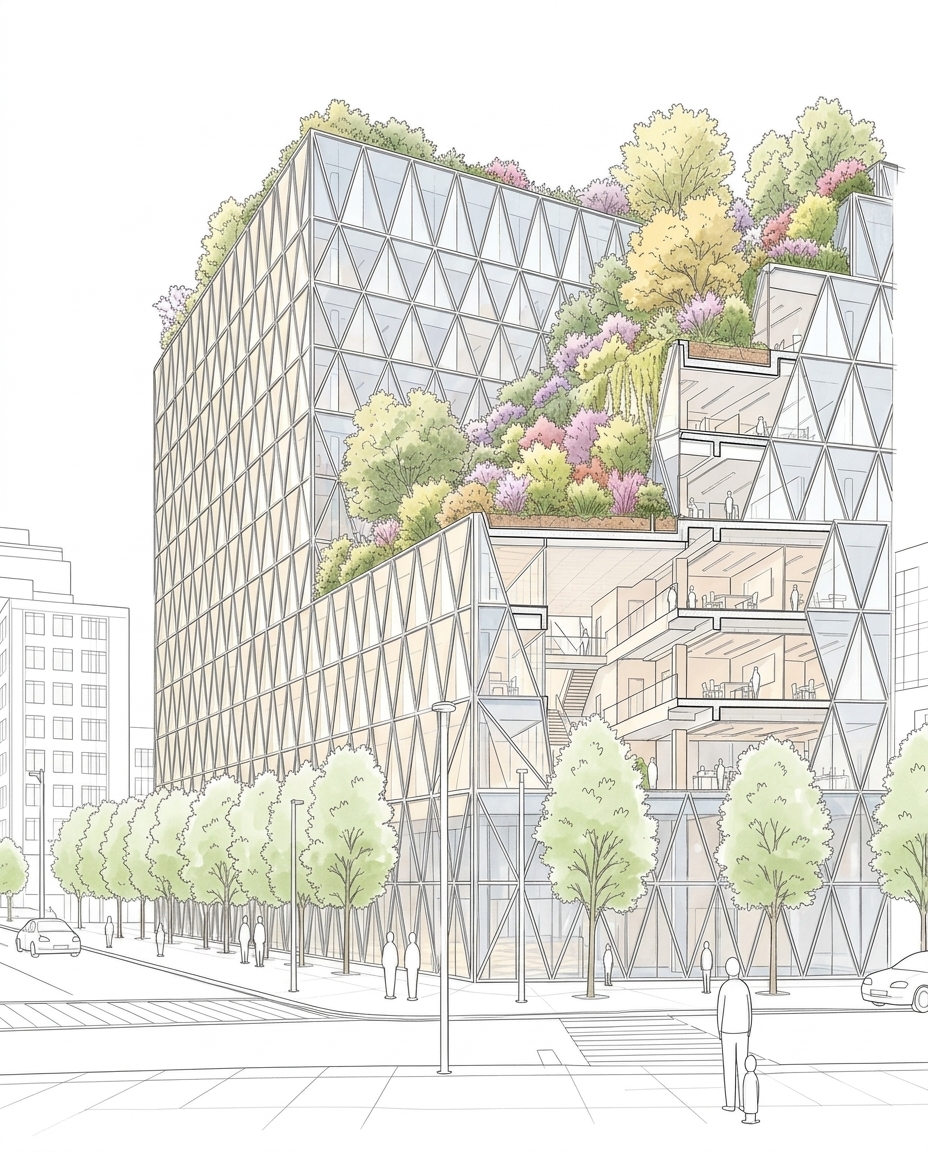 Figure 07. Watercolor architectural illustration
For facade detail close-ups, we shift the prompt toward material texture and lighting.
architectural facade detail, close-up material texture, soft natural shadows, concrete and wood facade, realistic lighting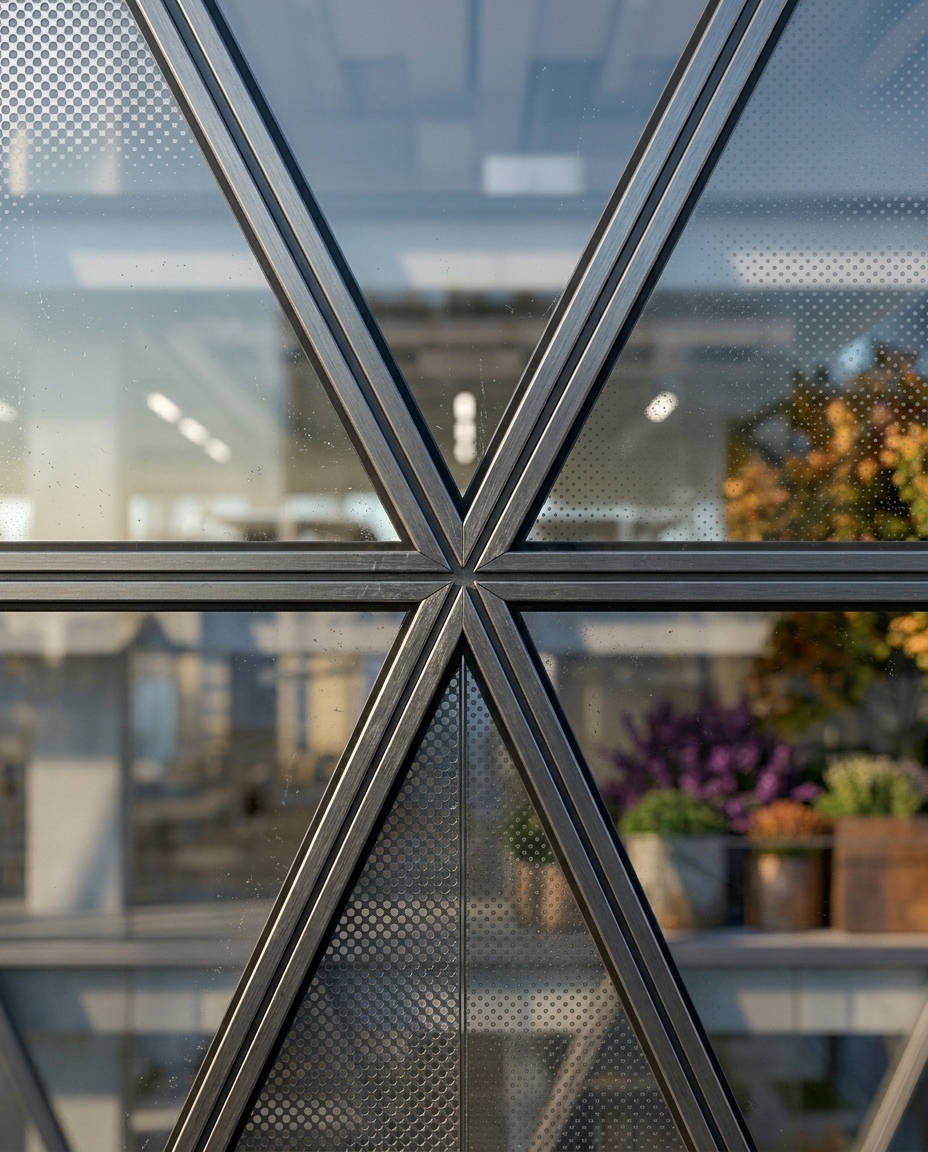 Figure 08. Facade detail close-up
What changed in our workflow
The biggest change for us was not rendering speed alone. It was reducing the cost of iteration.
Instead of spending hours building every presentation image manually, we can now test multiple architectural directions within minutes. This makes early-stage design discussions faster and more collaborative.
ReRoom still has limitations. Spatial consistency, diagram precision, and material control often require manual adjustments. But we see AI less as an automatic rendering machine and more as a tool for rapidly exploring architectural ideas.
Related posts
How to Edit Interior Renders with Nano Banana
AI interior editing is not just about making an image look better. It is about controlling what changes and what stays untouched.
Willy·Jul 30, 2026
How to Create Planting Design Boards with AI
A planting design board is not just a plant collage. It turns climate, water use, and atmosphere into a clear proposal direction.
Willy·Jul 24, 2026
How to Turn Static Renders into AI Walkthrough Videos
A static render can become more than a single image. With the right video prompt, it can turn into an immersive spatial walkthrough.
Willy·Jul 21, 2026