How to Create Elevation Diagrams from Google Earth
Learn how to use ReRoom and Nano Banana Pro to turn Google Earth street views into clean 2D architectural elevation diagrams.
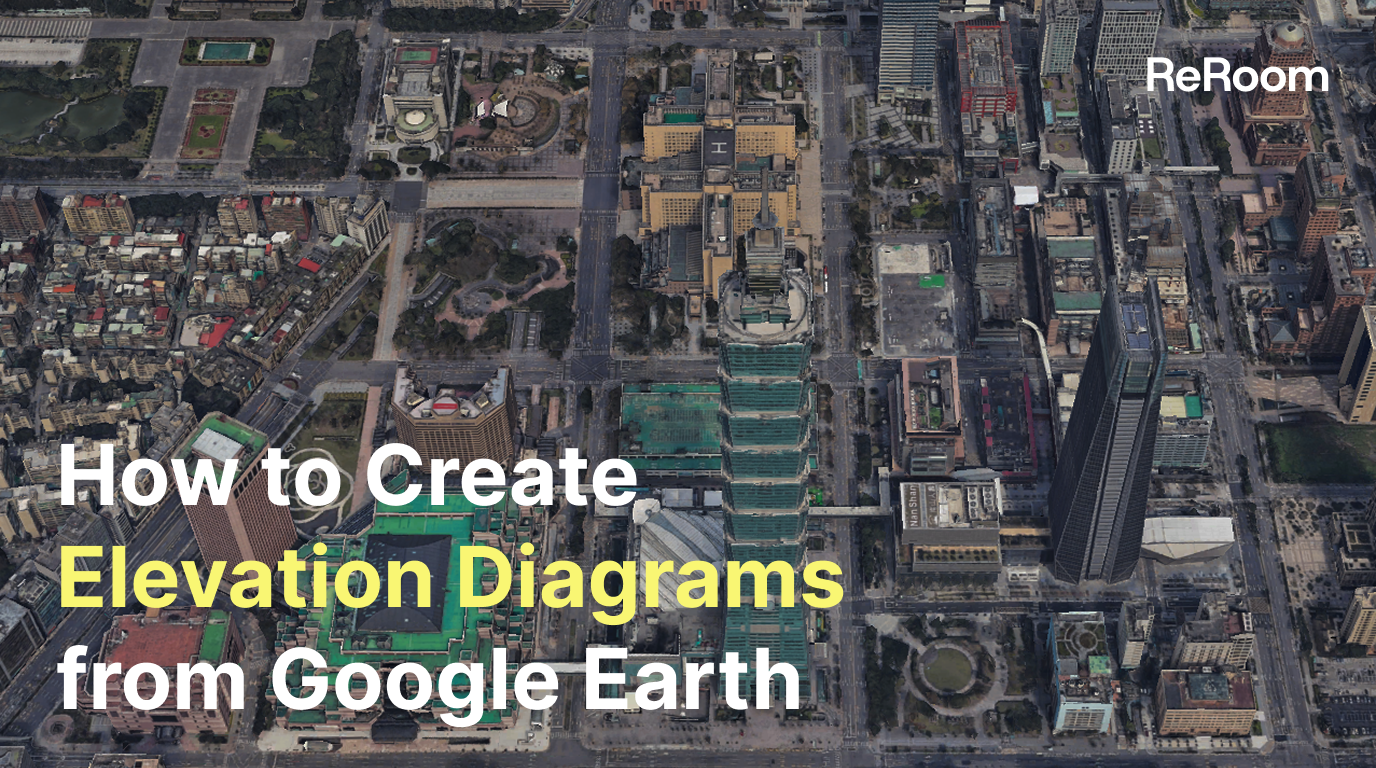
Why use Google Earth as a starting point?
When studying architecture or analyzing building facades, we often start with Google Earth or street-view references. These images are easy to access and usually contain useful information such as building massing, facade rhythm, street scale, openings, and surrounding context.
The problem is that street-view images also contain a lot of noise. Perspective distortion, cars, trees, signs, shadows, and camera angles can all make facade analysis harder.
In this tutorial, we’ll use ReRoom with Nano Banana Pro to turn a real 3D street-view image into a clean, minimal, professional 2D architectural elevation diagram.
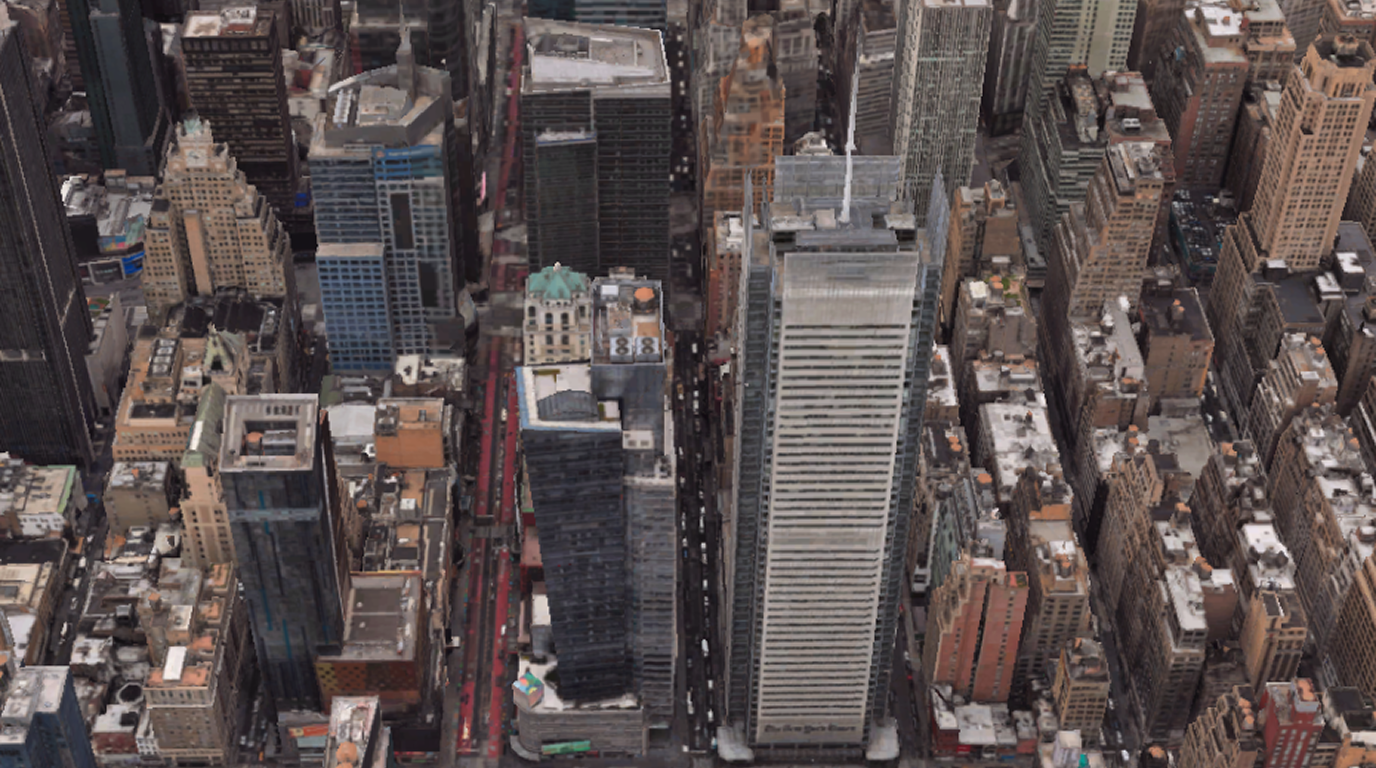
Figure 01. Capturing a target building from Google Earth as the structural reference
The goal of this workflow is not to create a measured construction drawing. Instead, we want to translate the facade structure from a real-world street image into a clearer format for case studies, presentations, and early-stage design references.
Step 1 — Log in and prepare your reference image
First, log in to ReRoom and prepare the Google Earth image you want to use.
Before uploading the image, we recommend choosing a view where the target building is as frontal as possible. A cleaner front-facing angle helps the AI understand facade proportion, floor rhythm, window spacing, and the structural grid.
If the screenshot is too angled, the model may treat perspective distortion as part of the facade design. The result may still look like an elevation, but the proportion and structure can become unstable.
At this stage, we are not asking the model to create a beautiful drawing yet. We first need the model to understand that the main subject is the building facade, not the street photo.
Step 2 — Go to Home and open the generation workflow
After logging in, go to the ReRoom home page and open the image generation workflow.
Upload the Google Earth screenshot as the main reference image. This reference image will act as the structural input for the transformation.
The important thing here is to keep the task focused. We are not asking ReRoom to redesign the building. We are asking it to convert the existing facade information into a cleaner 2D architectural drawing style.
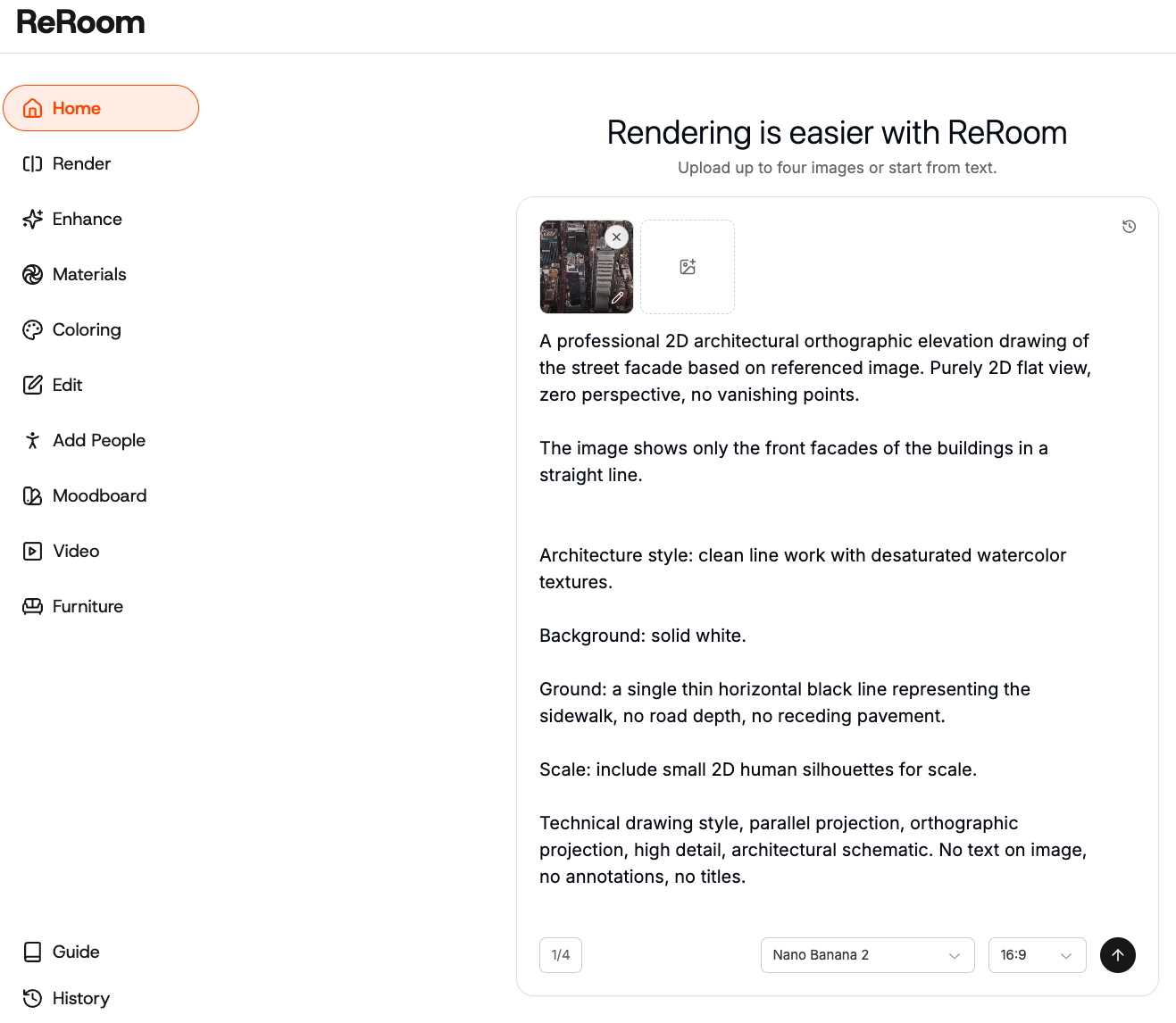
Step 3 — Select Nano Banana Pro
Next, select the Nano Banana Pro model.
For this workflow, Nano Banana Pro is useful because we want a controlled image transformation rather than a purely creative reinterpretation. The reference image should still guide the final output, especially the building outline, facade grid, window rhythm, and overall proportion.
Once the model is selected, we can write a prompt that clearly tells the model to remove perspective and convert the photo into a 2D orthographic elevation.
Step 4 — Write the prompt
The most important part of this workflow is the prompt. We need to clearly describe the output as a 2D orthographic architectural elevation, not a render, illustration, or concept image.
Use a prompt like this:
A professional 2D architectural orthographic elevation drawing of the street facade based on referenced image. Purely 2D flat view, zero perspective, no vanishing points.

The image shows only the front facades of the buildings in a straight line.


Architecture style: clean line work with desaturated watercolor textures.

Background: solid white.

Ground: a single thin horizontal black line representing the sidewalk, no road depth, no receding pavement.

Scale: include small 2D human silhouettes for scale.

Technical drawing style, parallel projection, orthographic projection, high detail, architectural schematic. No text on image, no annotations, no titles.
In our tests, the most useful words were not “beautiful elevation drawing.” The more important words were geometric and architectural constraints, such as window rhythm, structural grid, facade proportions, and orthographic elevation.
These terms help the model understand what needs to be preserved, instead of simply making the image look more polished.
Step 5 — Refine the diagram style
After the first output, you can refine the image by making the drawing more diagrammatic and professional.
For example, if the result still feels too much like a render, reduce material and lighting descriptions. If the result is too abstract, add more structure-related terms such as line weight, facade grid, and architectural diagram.
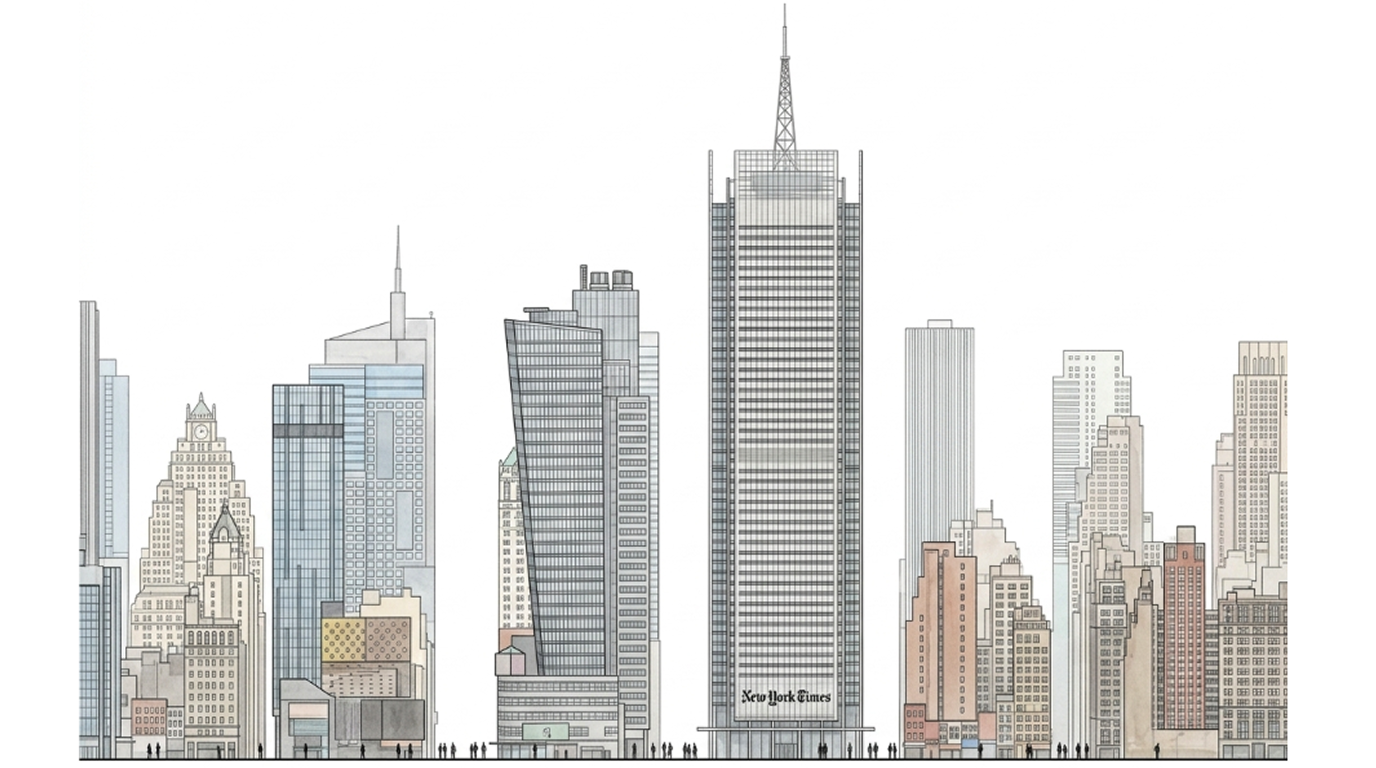
Figure 02. Using Nano Banana Pro to convert a street-view image into a minimal 2D architectural elevation
The key trade-off is between simplification and recognition. If the drawing is too simplified, the building may lose its identity. If it is too faithful to the street-view image, it may keep too much visual noise.
In most cases, we try to preserve floor rhythm, major openings, structural grid, and facade divisions, while removing cars, people, signage, strong shadows, and unnecessary street details.
Step 6 — Use the result for case studies and design references
This workflow can turn a real 3D street-view image into a clean 2D architectural elevation diagram. It is especially useful for case studies, facade language research, presentation diagrams, and early-stage design references.
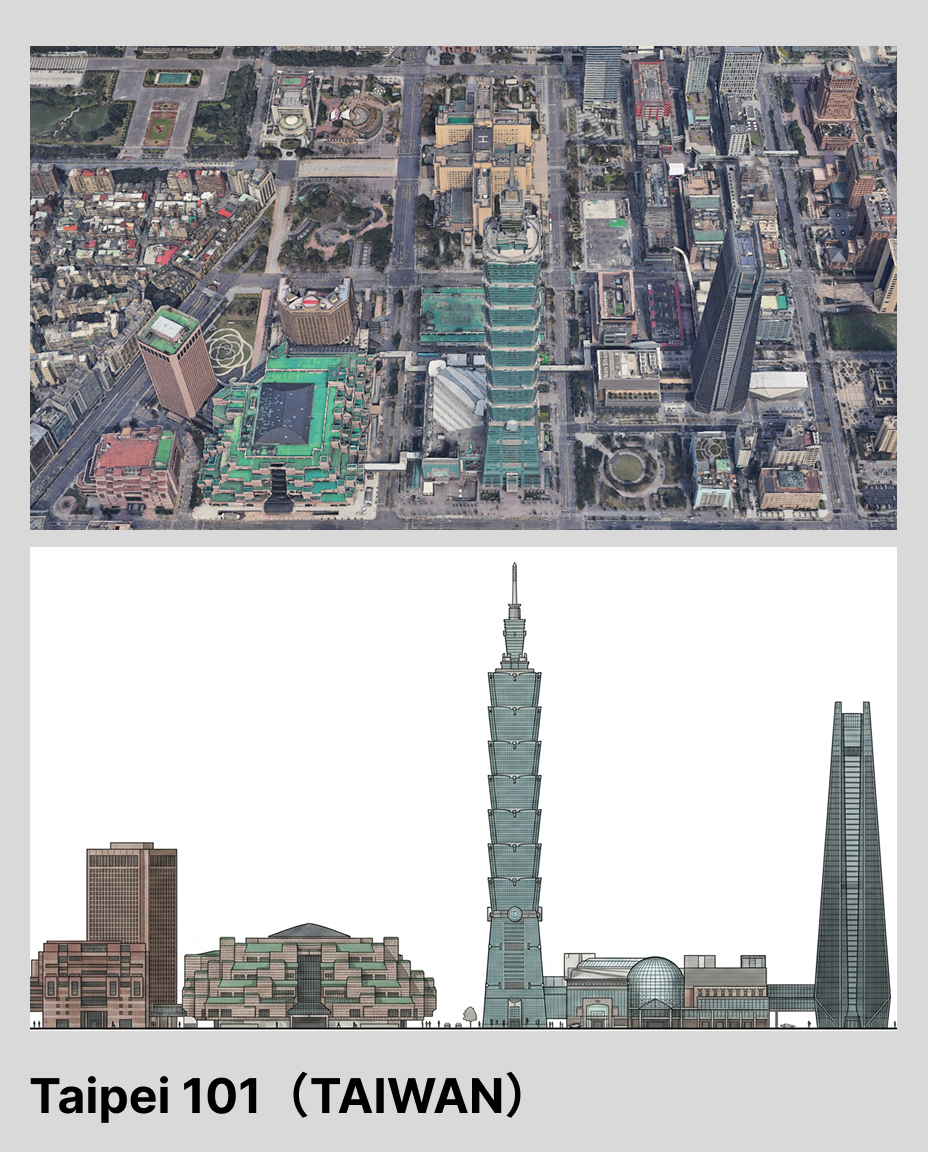
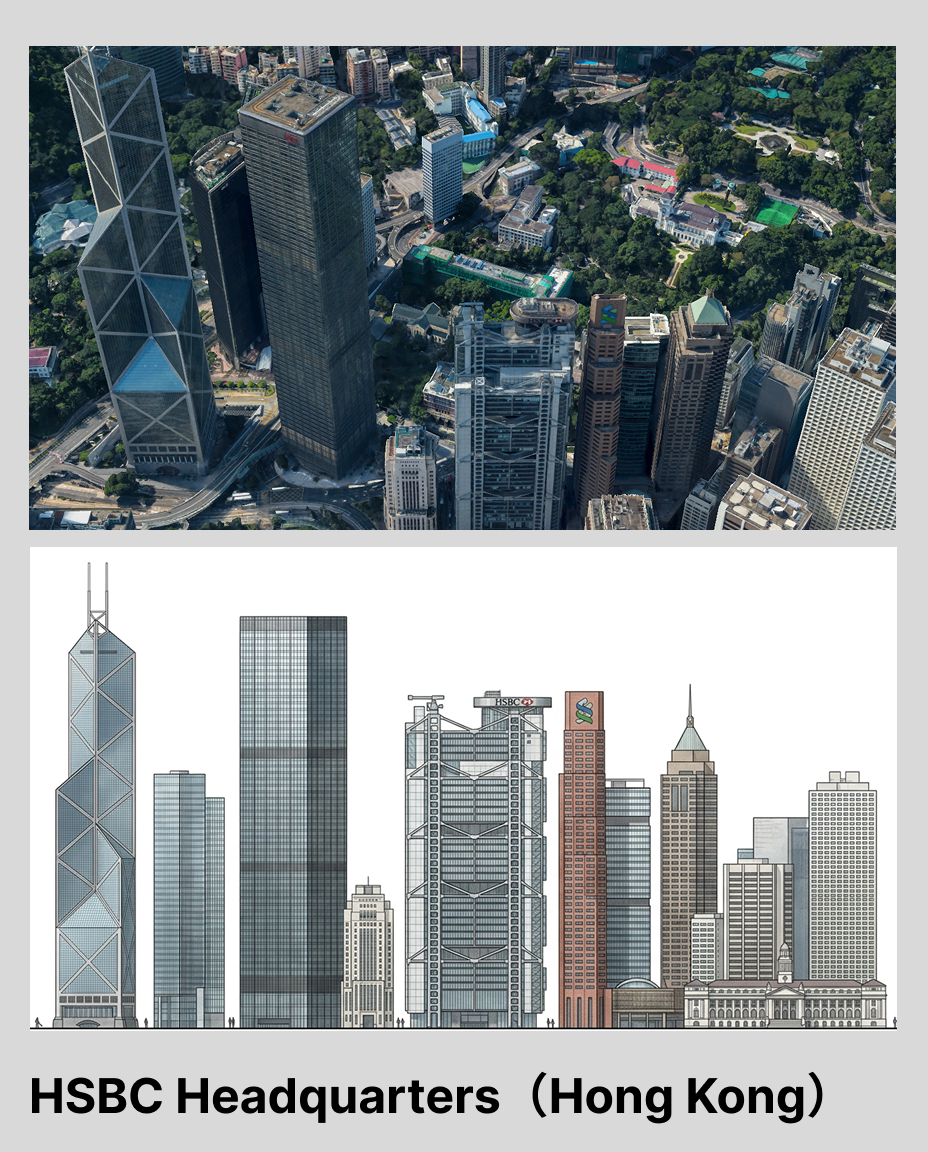
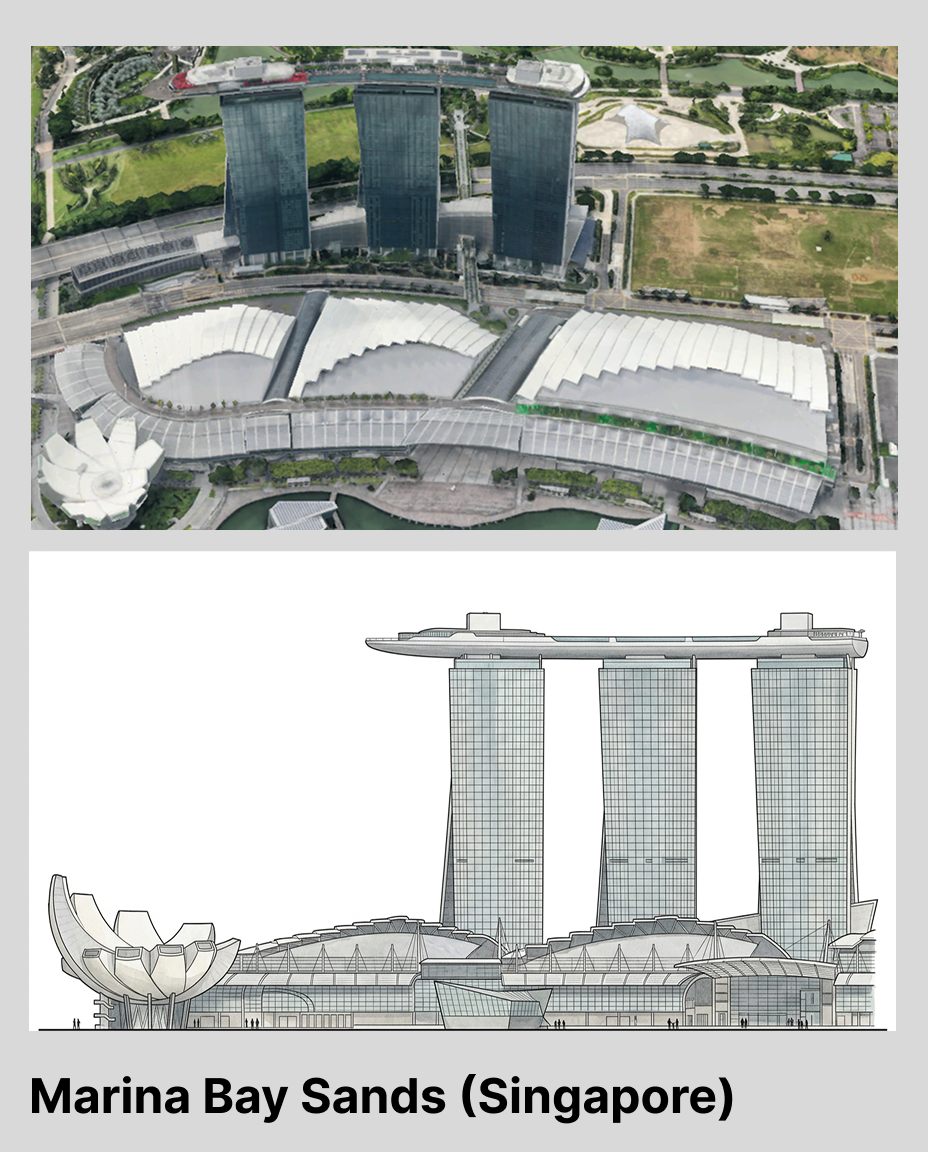
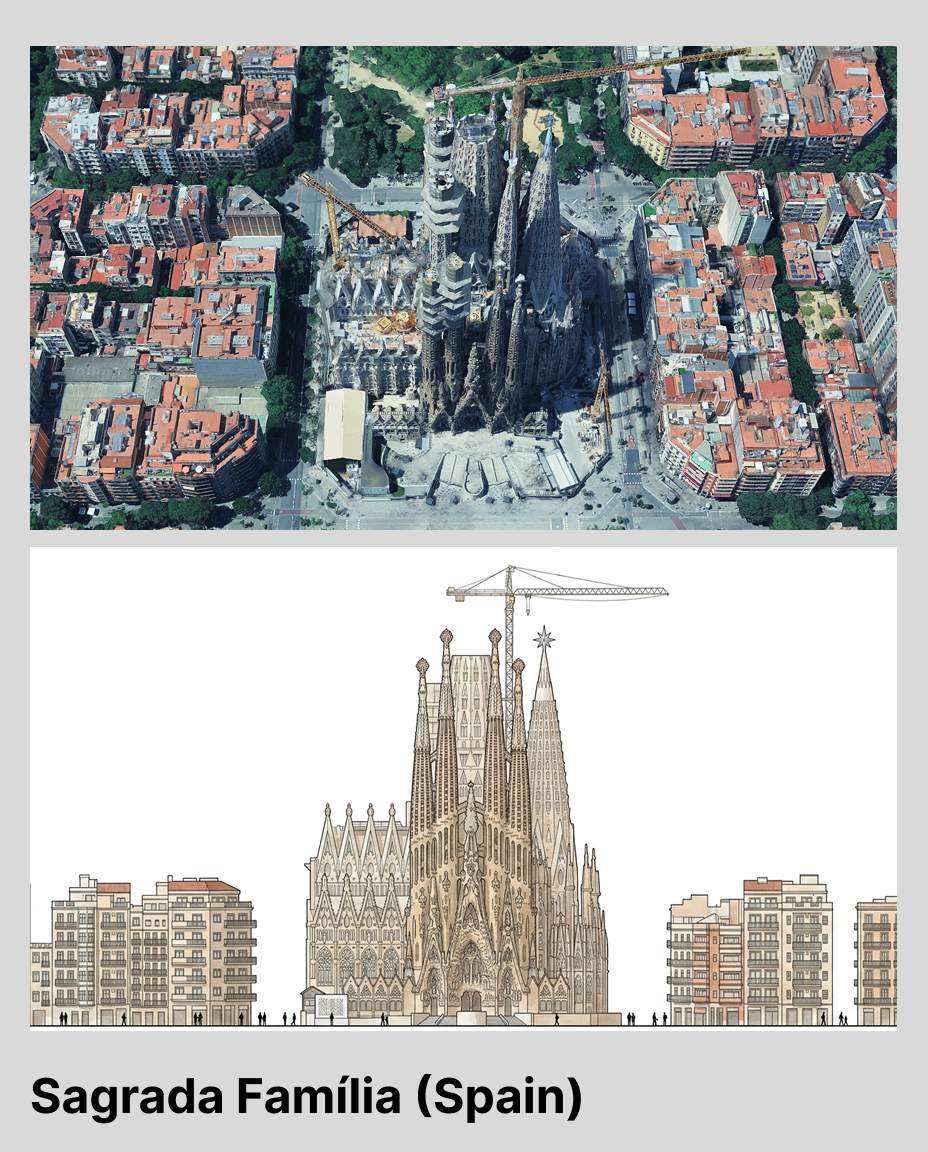
Figure 03. Different facade diagram outputs created from real building references
We do not treat this output as a precise measured drawing. Google Earth images already contain perspective distortion and resolution limits, and AI may reorganize proportions or facade details.
However, this workflow can reduce the early effort of turning street-view references into clean architectural diagrams. It helps designers move faster from visual reference to analysis, comparison, and presentation.
ReRoom still requires human review for proportion, floor count, opening placement, and facade logic. But this workflow shows a useful direction: AI is not only for generating new buildings. It can also help designers reorganize the existing world into readable, editable, and discussable architectural materials.
Related posts
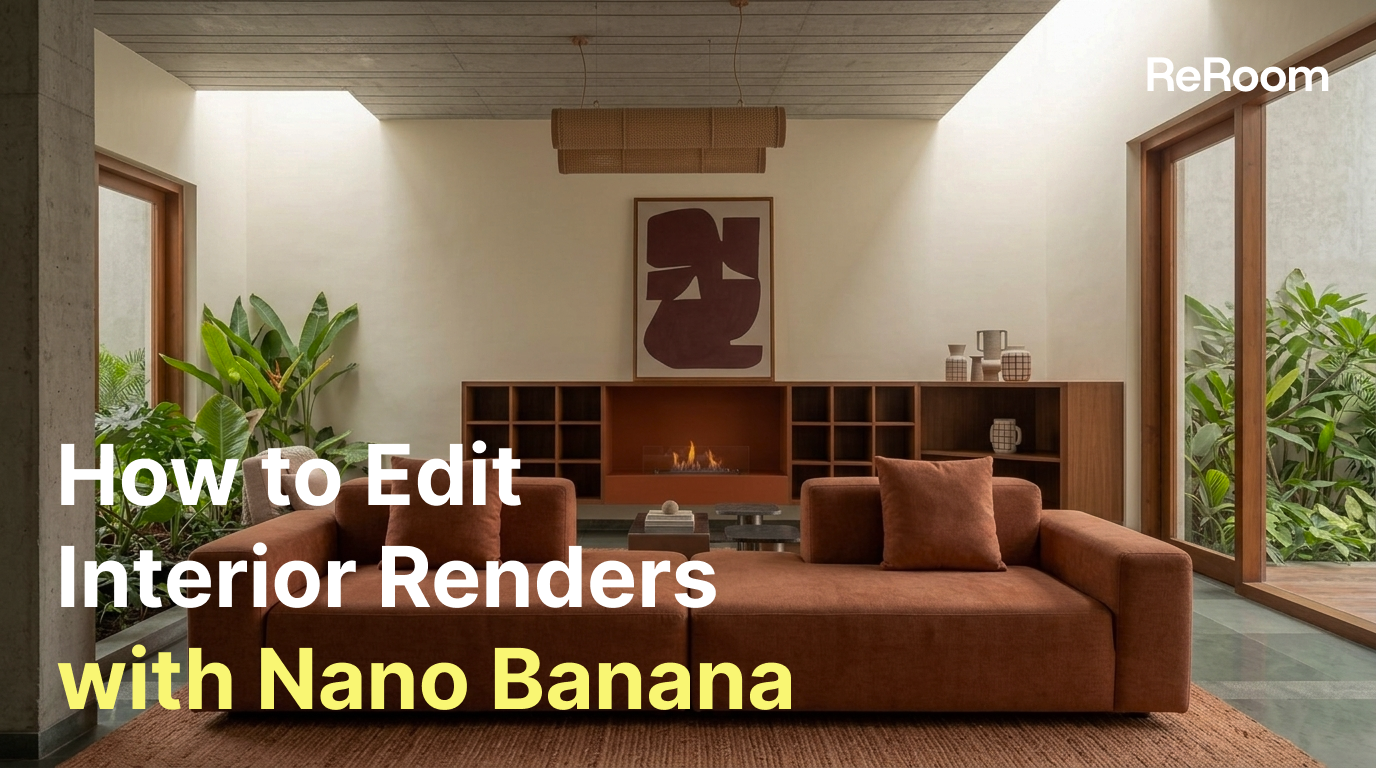
How to Edit Interior Renders with Nano Banana
AI interior editing is not just about making an image look better. It is about controlling what changes and what stays untouched.
Willy·Jul 30, 2026
How to Create Planting Design Boards with AI
A planting design board is not just a plant collage. It turns climate, water use, and atmosphere into a clear proposal direction.
Willy·Jul 24, 2026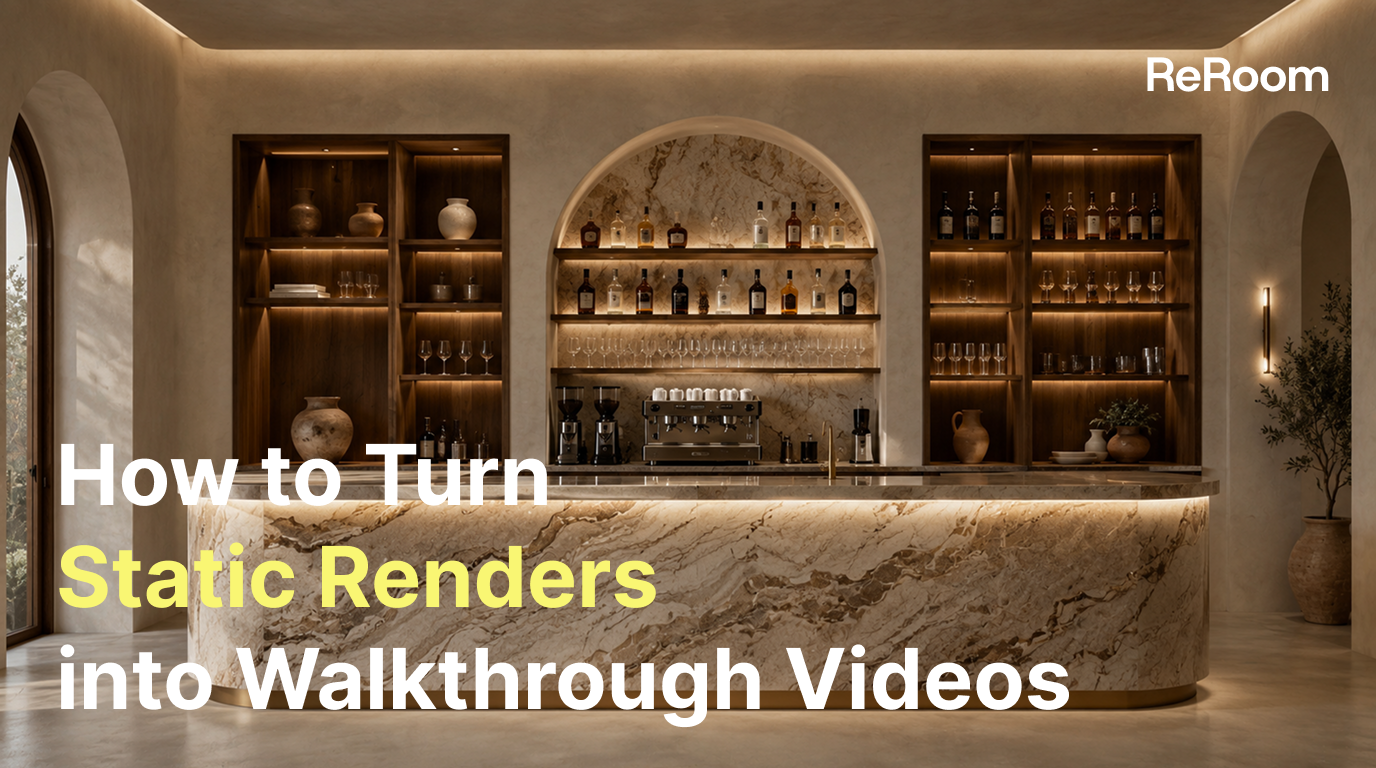
How to Turn Static Renders into AI Walkthrough Videos
A static render can become more than a single image. With the right video prompt, it can turn into an immersive spatial walkthrough.
Willy·Jul 21, 2026